
A proper WordPress backup is a complete, recent copy of both your website’s files and its database, stored somewhere other than the server your website lives on, and proven to restore. All four parts of that sentence matter. A copy of only the files loses your pages, orders and settings, because those live in the database. A backup sitting on the same server disappears in the same incident that takes the site. And a backup you have never restored is a hope, not a safety net. This guide walks through how I set backups up on client sites, how often to run them, and the one test that tells you whether any of it actually works.
Websites rarely warn you before they break. Updates clash, hosts have bad days, and hacked sites are usually discovered weeks after the event. When that day comes, the difference between a bad afternoon and a lost business asset is the backup you made before it happened.
What a Full Backup Actually Includes
WordPress is two things at once, and a full backup must capture both:
The files. Your WordPress installation: the core software, your theme, your plugins, and above all the wp-content/uploads folder — every image and file you have ever uploaded. Uploads are the one part that can never be regenerated; a theme can be downloaded again, your product photos cannot.
The database. This is where the site actually lives: pages and posts, WooCommerce products and orders, form entries, users, settings, menus and comments. Restore the files without the database and you have an empty shell wearing your design.
When you evaluate any backup tool or host feature, ask one question: does this include files and database, complete? Some cheap “backup” features quietly copy only one of the two, and you find out which on the worst possible day.
How Often Should You Back Up?
Match the frequency to how much you would hate to lose. The honest rule: your backup interval should never be longer than the amount of work or trading you can afford to redo.
- Brochure and service websites that change weekly or less: a full backup weekly, plus one immediately before any update or change.
- Websites publishing content often: daily backups, so a failure never costs more than a day’s posts.
- WooCommerce stores and busy sites: daily as a minimum, and consider real-time or hourly backups of the database if orders arrive through the day. Losing a week of orders is not a technical problem; it is customers you cannot fulfil and payments you must reconcile by hand.
Two moments always deserve a manual backup regardless of schedule: before updating WordPress, themes or plugins, and before any change to the site’s design, hosting or domain. On client sites I take a fresh backup before every update session, without exception — it turns a risky update into a reversible one. Keep several generations, not just the latest: a common, sensible pattern is to keep daily copies for a week or two and weekly copies for a month or more, because some problems (especially hacks) are discovered long after they started, and last night’s backup may contain the same infection.

Where Backups Should Live: Off-Site, Always
A backup stored on the same server as the website fails the first test of a backup. If the host account is compromised, the server fails, or the account itself is closed, the site and its “backups” go together. I have seen site owners discover this in the worst order.
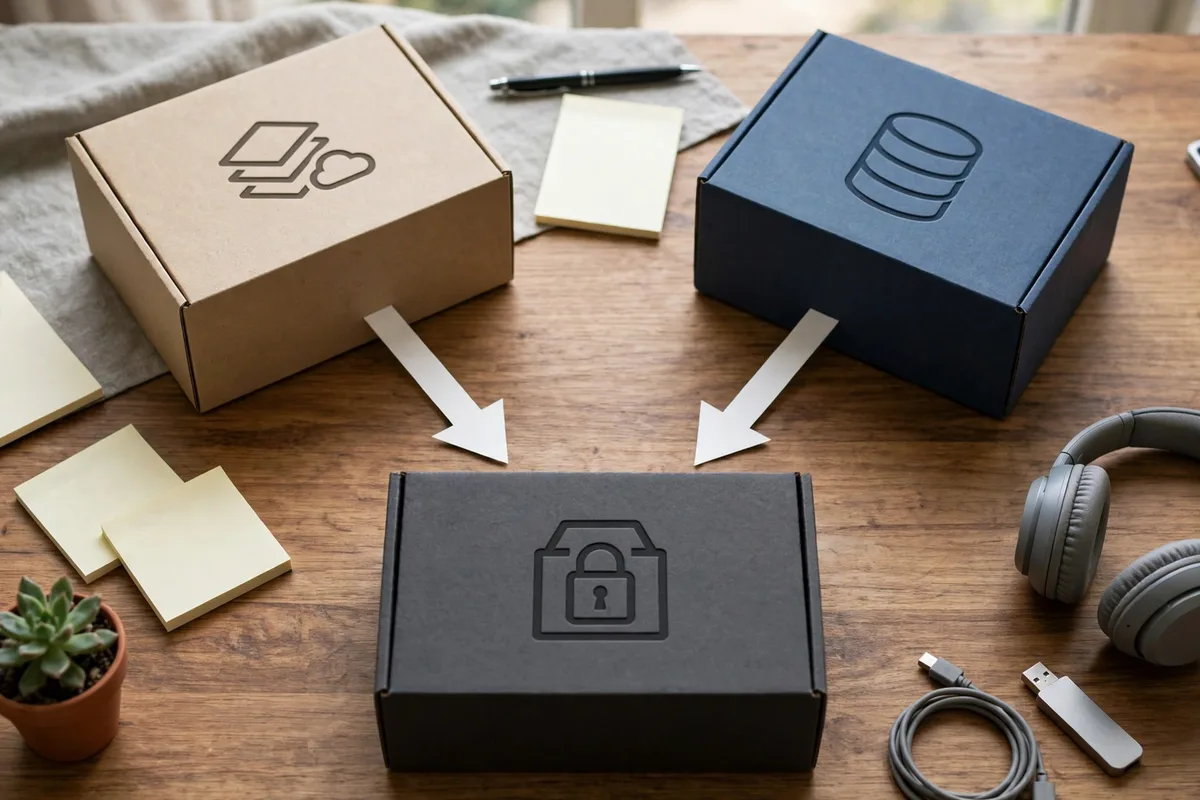
Follow the classic 3-2-1 idea, scaled to a website: keep multiple copies, on more than one kind of storage, with at least one copy off-site. In practice for a WordPress site that means:
- The live site itself.
- A copy in cloud storage you control — Google Drive, Dropbox, OneDrive or an Amazon S3-style storage bucket, connected directly to your backup tool.
- Ideally, an occasional download to your own computer or a drive at home, especially before major changes.
Off-site storage also protects you from a quieter disaster: running out of server space. Backups piling up inside your hosting account can fill the disk and take the site down all by themselves — another reason they belong elsewhere.
Plugin Backups vs Host Backups
You will usually have two options, and the right answer is often both, for different reasons.
Backup plugins — UpdraftPlus is the most widely used, with alternatives such as BlogVault and Jetpack VaultPress — run inside WordPress. Their strengths: you control the schedule, the destination and the retention; they send copies off-site automatically; and restoring does not require your host’s permission or support queue. Their limit: they run on the same site, so if WordPress itself is fully broken or you are locked out of the admin, you restore from the plugin’s stored files with its standalone tools or by rebuilding — possible, but a step harder.
Host backups are taken by your hosting company at server level. Their strengths: they capture everything, including things outside WordPress, and a good host can roll an entire account back in minutes. Their limits: retention is often short (commonly days to a few weeks, depending on the plan), you usually cannot download or move them freely, they vanish if you leave the host, and “backups included” on a cheap plan sometimes means a feature you must restore through a slow support ticket.
My standard setup on client sites is a plugin backup on a schedule to cloud storage as the primary system, with host backups as a second layer — never the only layer. Whatever you choose, write down where the backups are, how far back they go, and how a restore is started. On the worst day, you should not be researching your own setup.
The Step Everyone Skips: Test a Restore
An untested backup is an assumption. Backup files corrupt, storage connections expire silently, and incomplete backups look exactly like complete ones until the restore fails halfway.
Testing does not mean restoring over your live site. Do it safely:
- Create a staging copy of your site (many hosts offer one-click staging) or a local copy on your own computer.
- Restore a recent backup into that copy, using the same tool and files you would rely on in an emergency.
- Click through it as a visitor: homepage, a service page, the shop and checkout if you sell, and a form submission.
- Note how long it took. That number is your real recovery time, and knowing it in advance changes a crisis into a timetable.
I run a test restore after setting up backups on any client site, and again periodically as part of maintenance — the WordPress maintenance checklist I work from includes it alongside updates, security scans and form tests. It takes under an hour and it is the difference between having backups and having a way back.

What a Backup Cannot Do
Be clear about the limits, so backups sit in the right place in your thinking. A backup does not prevent a hack, a failed update or a hosting outage — it only shortens the recovery. It also does not protect your domain name, your email accounts or anything else that lives outside the website itself, and restoring an old backup will not remove the vulnerability that caused the problem; if a site was hacked, the security hole still has to be found and closed, or the restored site will simply be hacked again. Think of backups as the last line of defence, behind updates, strong passwords and sensible security — the line that guarantees that even when every other protection fails, you still have a website to come back to.
A Backup Routine You Can Start Today
- Install a maintained backup plugin and connect it to cloud storage you control.
- Set the schedule by your site’s activity — weekly for a quiet site, daily for content or a store — and keep at least a month of history.
- Run the first full backup now, then download a copy to your own computer.
- Take a manual backup before every update session and every significant change.
- Test-restore into staging or a local copy, and note the recovery time.
- Put a recurring check in the diary: are the latest backups succeeding? A failed schedule you never notice is the same as no backup.
Backups are the least glamorous part of owning a website and the part that decides whether every other problem is an inconvenience or a catastrophe. They are also built into how I maintain client websites — a routine covered in my guide to WordPress website maintenance costs, because a store or service site that cannot be restored is a liability, not an asset.
If you would rather know this is handled — scheduled backups, off-site copies, tested restores and someone to call when a site breaks — get in touch for a consultation. Every website I build, from landing pages at $349 to websites with a store at $799 and custom builds at $1,499, leaves with a working, tested backup system in place.