
A WordPress site is a bit like a car: it runs fine for a long time with no attention, and then everything fails at once. The difference is that nobody reminds you the site is due for a service. There is no dashboard warning light. Things just quietly get out of date — until the day a plugin update breaks the checkout page, or Google flags the site as hacked, or the host suspends the account. This WordPress maintenance checklist prevents those surprises.
This WordPress maintenance checklist is the monthly routine I run on client sites. Twelve tasks, in the right order — the order matters, because some tasks protect you while you do the others. Each one lists roughly how long it takes. The whole pass is about an hour for a typical small-business site once you’re used to it.
Tip: this WordPress maintenance checklist follows the same order the official WordPress documentation recommends — backup first, then updates.
1. Take a full backup (before you touch anything)

What: A complete backup — files plus database — stored somewhere off your server.
Why: Everything below this point changes your site. If an update breaks something or a scan quarantines the wrong file, the backup is your undo button. Always backup first. Always.
How long: 5 minutes to trigger; it runs in the background. Use UpdraftPlus (free) or Jetpack Backup, set to store copies on Google Drive or Dropbox — not just on the same server as your site. While you’re here, glance at the backup log and confirm recent backups actually completed. A backup job that’s been silently failing for three months is the same as no backup.
2. Update WordPress core, plugins, and themes
What: Dashboard → Updates: install pending updates for WordPress itself, all plugins, and themes.
Why: Outdated software is the number one way WordPress sites get compromised. Attackers run automated scans looking for known vulnerabilities in old plugin versions — updating closes those holes. Updates also keep everything compatible with each other.
How long: 10–15 minutes. Update in this order: WordPress core first, then plugins, then themes. Do them one or two at a time rather than hitting “update all” — if something breaks, you’ll know which update caused it. Delete any themes you’re not using (a default like Twenty Twenty-Four plus your active theme is enough), and delete deactivated plugins rather than leaving them sitting there — inactive code can still be exploited.
3. Check the site after updating
What: Visit the homepage and 3–4 key pages (contact page, services page, checkout if you have one) in a private/incognito window. Submit the contact form. Check the site on your phone.
Why: Updates occasionally break layouts, forms, or payment flows. Catching it now — minutes after the update, with a fresh backup from step 1 — turns a crisis into a two-minute rollback. Catching it three weeks later, when a customer complains, is a different story.
How long: 10 minutes. This is the step most people skip, and it’s the step that saves you.
4. Run a security scan
What: A full malware and integrity scan with a security plugin.
Why: Even well-maintained sites get probed constantly. A monthly scan catches injected files, modified core files, and suspicious code before Google or your visitors notice.
How long: 5 minutes to start; the scan runs itself. Wordfence (free) is the standard: Wordfence → Scan → Start New Scan. Review anything it flags — most findings are false positives or outdated files, but unknown files in wp-content or modified core files deserve attention. If the scan finds actual malware, stop and deal with that before continuing the checklist.
5. Review user accounts
What: Users → All Users: look at everyone with an account on your site.
Why: Old developer accounts, ex-employee logins, and mysterious new “admin” users you didn’t create are all common. Unknown administrator accounts are a classic sign of a past or ongoing compromise.
How long: 3 minutes. Remove accounts that shouldn’t be there, demote anyone who doesn’t need admin rights (editors and shop managers rarely do), and make sure your own account uses a strong, unique password. If you find a user you don’t recognize with admin access, treat it as a security incident, not a tidying task.
6. Confirm your backups are restorable
What: Verify that a backup from step 1 — or your automated schedule — could actually be restored.
Why: A backup file that is corrupted, incomplete, or stored somewhere you can’t reach is not a backup. You don’t need to do a full restore every month; just confirm the backup set exists off-site, is recent, and is a sensible size (a sudden tiny backup file means something failed silently).
How long: 3 minutes. Once or twice a year, do a real test restore to a staging site. Backups you have never restored are just optimism.
7. Check for broken links
What: Find links on your site that lead nowhere — deleted pages, changed URLs, dead external links.
Why: Broken links frustrate visitors and make the site look neglected. If you’ve ever renamed a page or removed a service, old links to it may still be floating around in blog posts and menus.
How long: 10 minutes. The Broken Link Checker plugin scans in the background and lists problems under Tools → Broken Links; fix or remove them. (Note: run the scan, get the list, then consider deactivating the plugin between checks — the old version was known for slowing sites.) Also click through your main navigation menu manually — menus don’t always show up in automated scans.
8. Clean up the database
What: Remove accumulated junk: post revisions, trashed items, spam comments, expired transients, and old draft clutter.
Why: WordPress never throws anything away by itself. A site that’s been running for years can carry thousands of post revisions and megabytes of expired transient data, which slows down backups and bloats the database.
How long: 5 minutes with WP-Optimize: run its standard cleanup (revisions, auto-drafts, trashed posts, spam comments, transients). Check the “keep last 2–3 weeks of revisions” style options rather than deleting everything blindly. Never run raw SQL cleanup queries unless you know exactly what they do — the plugin exists so you don’t have to.
9. Check uptime and speed
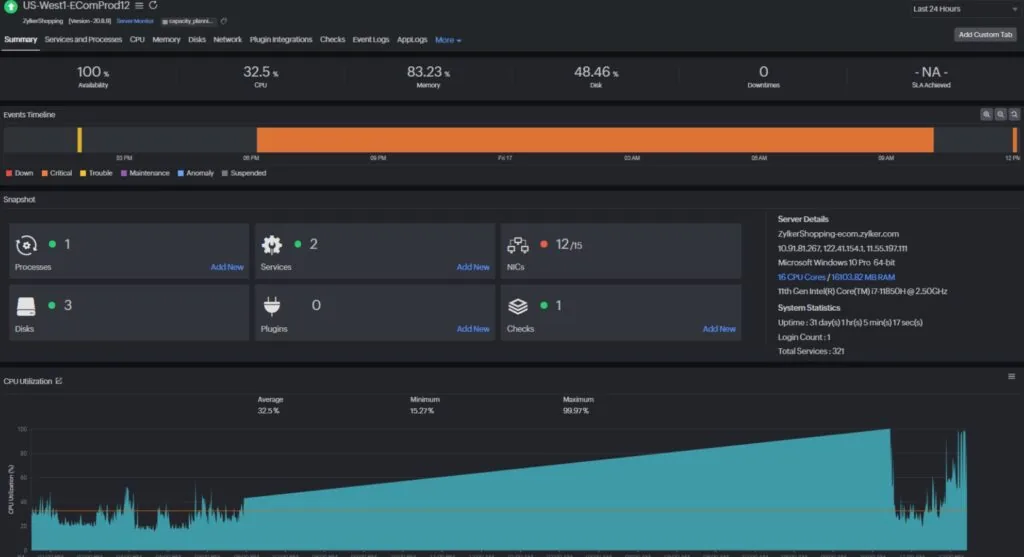
What: Confirm the site has been reachable all month and still loads at a reasonable speed.
Why: You’d be surprised how many owners discover their site was down for days — nobody tells you. And speed drifts: new plugins, uncompressed images, and database bloat gradually slow things down.
How long: 10 minutes. For uptime, a free monitor like UptimeRobot (checks every 5 minutes, emails you when the site goes down) is worth setting up once and forgetting. For speed, run the homepage through PageSpeed Insights and compare against last month — you’re looking for sudden drops, not chasing a perfect score. If images are the culprit, compress new uploads with ShortPixel or a similar tool.
10. Test your forms and checkout
What: Fill in and submit every form on the site — contact, quote request, newsletter signup. If you sell online, walk through a test purchase up to the payment step.
Why: Forms break silently. A plugin update, an email deliverability change, or an expired SMTP credential can mean enquiries vanish into the void for weeks. This is the highest-value five minutes on the checklist: a broken contact form is literally lost revenue.
How long: 5–10 minutes. Check that notification emails actually arrive (and check spam). If form emails have been landing in spam, that’s a deliverability issue — an SMTP plugin like FluentSMTP with proper SPF/DKIM records on your domain usually fixes it.
11. Review Search Console for issues
What: Open Google Search Console and check for crawl errors, security issues, and manual actions.
Why: Search Console is Google telling you, for free, what’s wrong with your site: pages it can’t crawl, mobile usability problems, and — critically — security warnings if the site has been compromised. Many hacked-site discoveries start here.
How long: 5 minutes. Look at the Security Issues report (should say “no issues detected”) and skim coverage errors. If you haven’t verified your site in Search Console yet, do it — it takes ten minutes and it’s the earliest warning system you get for free.
12. Clear spam and review comments
What: Comments → Spam: empty it. Skim pending comments for anything legitimate caught by the filter.
Why: Unmoderated spam comments make the site look abandoned and can contain dodgy links that hurt your reputation with Google. If you’re getting heavy spam, consider turning comments off on pages that don’t need them (Settings → Discussion) or adding a honeypot plugin like CleanTalk.
How long: 3 minutes.
WordPress Maintenance Checklist: Put It on the Calendar
The checklist only works if it actually happens. Pick a day — the first Monday of the month works well — and block an hour. If you know you’ll never do it (be honest with yourself), that’s exactly what maintenance plans exist for: a developer runs this routine for you, monthly, and you never think about it. Our guide to WordPress maintenance costs in 2026 breaks down what that typically involves and what drives the price.
If you’d rather hand the whole routine to someone who does it every day, that’s what our WordPress maintenance services are for — the full checklist above, plus someone to call when step 4 finds something unpleasant.
WordPress Maintenance Checklist: FAQs
How often should WordPress maintenance be done?
A full pass monthly is the right cadence for most small-business sites, with backups running automatically far more often (daily for the database is sensible). High-traffic stores or sites that change daily may need a lighter weekly check on top. The key is consistency — a skipped quarter is when problems compound.
Can I do WordPress maintenance myself or do I need a developer?
Most of this checklist is doable by a careful non-technical owner: backups, updates, and scans are all plugin-driven. Get a developer involved if updates break something, if a security scan finds malware, or if anything in the database or server settings needs touching. When in doubt, don’t guess — a wrong click in the wrong place is how sites break.
What happens if I never update WordPress plugins?
Outdated plugins are the most common way WordPress sites get hacked — attackers scan the web for known vulnerabilities in old plugin versions. Beyond security, old plugins eventually conflict with newer WordPress versions and break features. Updates are not optional; they’re the core of the checklist.
How much does WordPress maintenance cost if I hire someone?
It varies with the site’s size and complexity — a simple brochure site costs far less to maintain than a WooCommerce store. For a realistic breakdown of what goes into maintenance pricing, see our guide to WordPress maintenance costs in 2026.
Don’t want to spend an hour a month on this?
I run this exact checklist on client sites every month — backups, updates, scans, the lot — and you get a short plain-English report when it’s done. Message me on WhatsApp at +92 324 1400971 and I’ll tell you what monthly care would look like for your site. If you’d rather have this WordPress maintenance checklist handled for you, let’s talk.
[…] task in this guide yourself — WordPress makes the tools available to any site owner, and our WordPress maintenance checklist walks through the routine step by step. The honest trade-off is time and consistency: the routine […]
[…] far harder for anyone to send fake mail pretending to be your domain, which is why it sits on the maintenance checklist I work through on client […]
[…] after setting up backups on any client site, and again periodically as part of maintenance — the WordPress maintenance checklist I work from includes it alongside updates, security scans and form tests. It takes under an hour […]