If your WordPress website takes more than a few seconds to load, you are losing visitors every day. People don’t wait — they go back to Google and click your competitor instead. The good news: most WordPress speed problems come from a short list of fixable causes, and you don’t need to be a developer to fix most of them.
This is the practical companion to our guide on why WordPress websites get slow. If you haven’t diagnosed your site yet, read that first. Below are the 9 fixes we apply to real client websites, in the order we’d try them.
1. Compress and resize your images
Oversized images are the #1 cause of slow WordPress sites we see. Before uploading any image, resize it to the size it will actually display (usually no wider than 1600px) and compress it. Convert to WebP format — it looks the same at a fraction of the file size. Aim for under 200KB for large images and under 100KB for smaller ones. There are free plugins that do this automatically for images you’ve already uploaded.
2. Turn on page caching
Without caching, WordPress rebuilds every page from scratch for every visitor. A caching plugin saves a ready-made copy of each page and serves it instantly. This single change often cuts load time in half. Just be careful: after enabling caching, check your contact forms and dynamic content still work correctly.
3. Delete plugins and themes you don’t use
Every active plugin adds code your site must load. Go through your plugin list and delete — not just deactivate — anything you don’t actively need. Same for themes: keep your active theme plus one default WordPress theme as a fallback, delete the rest. Fewer plugins also means fewer security risks.
4. Keep your page layouts lean
Page builders like Elementor make design easy, but heavy layouts with dozens of sections, animations, and nested columns slow pages down. Use fewer sections, avoid animation overload, and don’t stack five plugins that all do similar things. A clean layout is faster and converts better.
5. Lazy-load images and videos (except the hero)
Lazy loading means images below the fold only load when the visitor scrolls to them. This makes the visible part of your page appear much faster. One exception: never lazy-load your hero/top image — it’s the Largest Contentful Paint element, and delaying it hurts your Core Web Vitals score.
6. Minify CSS and JavaScript — carefully
Minification removes unnecessary characters from your code files, making them smaller and faster to download. Most caching plugins include this. One warning for Elementor sites: aggressive JavaScript minification can break layouts, so enable it, then check every page template before you call it done.
7. Use a CDN
A content delivery network (CDN) stores copies of your images and files on servers around the world, so visitors download from the nearest one. If your customers are in the UK or US and your server is elsewhere, a CDN makes a noticeable difference. Many CDNs have free tiers that are enough for small business sites.
8. Clean up your database
WordPress saves every post revision, trashed item, expired transient, and spam comment in your database. Over time this bloat slows down queries. A database optimization plugin can safely remove revisions, auto-drafts, and transients in one click. Always take a backup first — it takes thirty seconds and saves you from disasters.
9. Upgrade your hosting when you’ve outgrown it
Honest truth: no plugin fixes bad hosting. If you’re on the cheapest shared plan and your site has grown, moving to better hosting (or at least a plan with more PHP resources) is sometimes the only real fix. Before you pay more, though, do fixes 1–8 — most sites don’t need new hosting, they need cleanup.
How to check if it worked
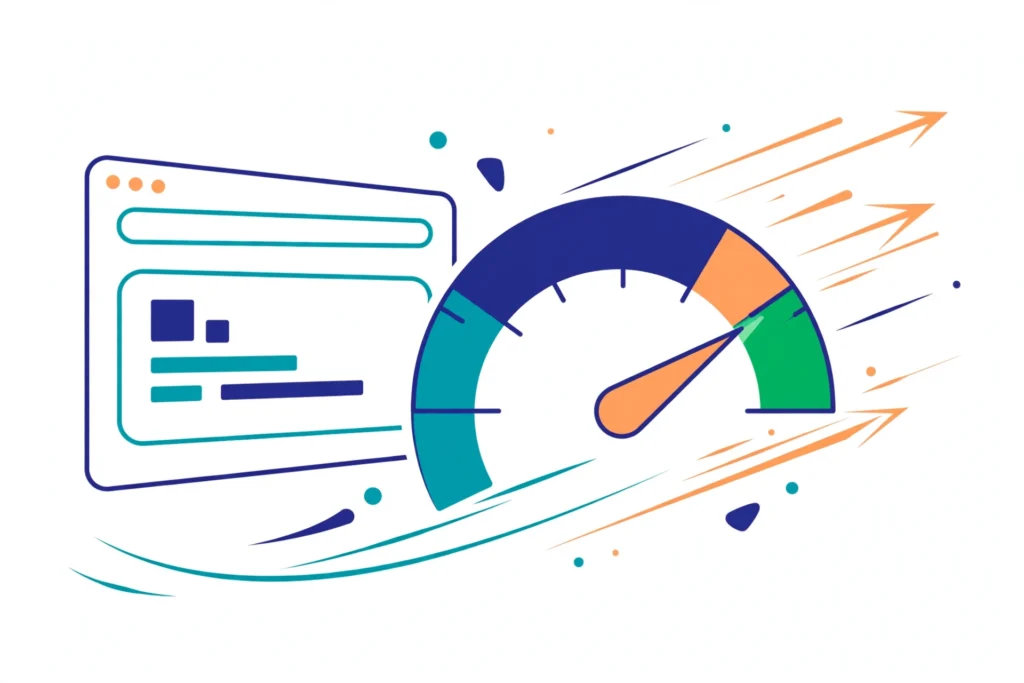
Test your site with Google PageSpeed Insights before and after. Focus on the mobile score and the three Core Web Vitals: LCP (should be under 2.5 seconds), INP (under 200ms), and CLS (under 0.1). Don’t chase a perfect 100 — a fast, stable site in the green zone is the goal.
Is your website slow?
We audit WordPress speed for small businesses — find what’s costing you visitors, then fix it properly. See our WordPress services or get in touch for a speed audit.
Frequently asked questions
How long does it take to speed up a WordPress website?
Most of the fixes above take an afternoon. A full cleanup — images, caching, plugin audit, database — is typically a few hours of focused work.
Will a caching plugin break my Elementor website?
It shouldn’t, but caching and minification settings can occasionally break layouts. Always check your key pages after changing performance settings, and exclude cart/checkout pages if you run WooCommerce.
What is a good page load time in 2026?
Aim for under 2.5 seconds on mobile for the main content to appear (that’s Google’s LCP threshold). Under 2 seconds is excellent for a business site.